
Creating a Scoped Developer Key
- Create a new Account Admin with account/sub-account level access in Canvas using an email address that has no associated Canvas account.
- We suggest creating an ‘Atomic Search’ user so that, if the person first installing Atomic Search leaves the institution, the user and app won’t be deleted.
- Activate the new user in an Incognito window using the link sent via email. To bypass an SSO sign-in, on the SSO page, enter [domain].instructure.com/login/canvas.
- Log in to Canvas under the new Account Admin with root-level account/sub-account access.
- Access the root account/sub-account.
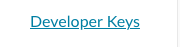
- Select Developer Keys in the left-hand Canvas navigation menu.
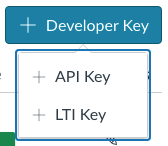
- Select add a Developer Key.

- Select "API",
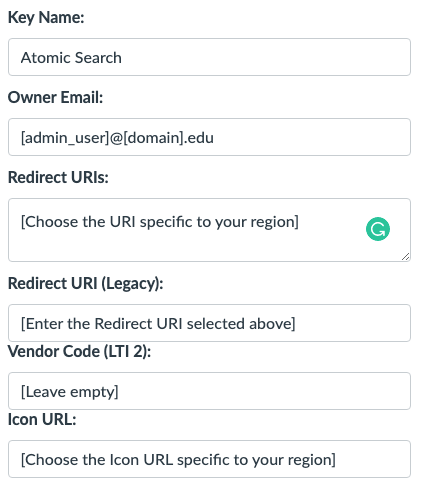
- Enter the following information:
- Key Name: “Atomic Search”
- Owner Email: [The Admin Email]
- Redirect URIs (choose the URI specific to your region):
- Redirect URI (Legacy): Same as Redirect URIs
- Vendor Code (LTI 2): Leave empty
- Icon URL: (choose the one specific to your region)
|
US |
|
|
Sydney |
|
|
Dublin |

Enforcing Scopes
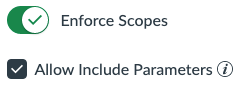
- Turn on the Enforce Scopes and Allow Include Parameters options.
- Select the scopes shown in the table below.
-
- A simple way to ensure that you select the correct scope:
- First, expand all of the sections shown in the list below (Accounts, Assignments, Courses, Discussion Topics, Enrollments, External Tools, Files, Modules, Pages, Quiz Questions, Quizzes, and Users)
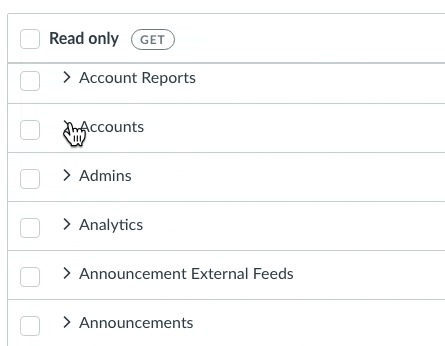
-
- On a Mac, select CMD+F, and on a PC, select CTRL+F to search within the page.
- Starting with the first ‘Scope Selection’, copy and paste the full entry (e.g. copy/paste “url:GET|/api/v1/accounts”) and hit Enter. Validate that it matches the full scope. Select the scope. Move on and search for the next one, and so on.

-
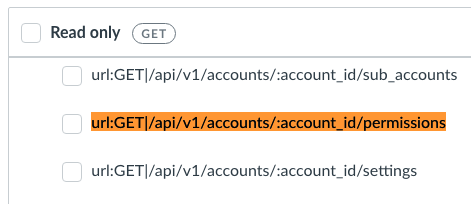
Full Scope List
|
Section |
Scope Selection |
Access Purpose |
|
Accounts |
url:GET|/api/v1/accounts |
Welcome app and permissions for searching courses/accounts |
|
Accounts |
url:GET|/api/v1/accounts/:id |
Indexing |
|
Accounts |
url:GET|/api/v1/accounts/:account_id/courses |
Indexing |
|
Accounts |
url:GET|/api/v1/accounts/:account_id/permissions |
Welcome app |
|
Accounts |
url:GET|/api/v1/accounts/:account_id/sub_accounts |
Welcome app and indexing |
|
Admins |
url:GET|/api/v1/accounts/:account_id/admins |
Indexing, consortium only |
|
Assignments |
url:GET|/api/v1/courses/:course_id/assignments |
Indexing |
|
Assignments |
url:GET|/api/v1/courses/:course_id/assignments/:id |
Indexing |
|
Assignments |
url:PUT|/api/v1/courses/:course_id/assignments/:id |
Find & Replace |
|
Courses |
url:GET|/api/v1/courses |
Welcome app |
|
Courses |
url:GET|/api/v1/courses/:id |
Indexing |
|
Courses |
url:GET|/api/v1/courses/:course_id/permissions |
Welcome app |
|
Courses |
url:PUT|/api/v1/courses/:id |
Find & Replace (syllabus) and Course Catalog |
|
Discussion Topics |
url:GET|/api/v1/courses/:course_id/discussion_topics |
Indexing |
|
Discussion Topics |
url:GET|/api/v1/courses/:course_id/discussion_topics/:topic_id |
Indexing |
|
Discussion Topics |
url:PUT|/api/v1/courses/:course_id/discussion_topics/:topic_id |
Find & Replace |
|
Discussion Topics |
url:GET/api/v1/courses/:course_id/discussion_topics/:topic_id/entries |
Permission for searching course discussions |
|
Enrollments |
url:GET|/api/v1/users/:user_id/enrollments |
Permissions for searching courses/ accounts |
|
Enrollment Terms |
url:GET|/api/v1/accounts/:account_id/terms |
Course Catalog |
|
Files |
url:GET|/api/v1/courses/:course_id/files |
Indexing |
|
Files |
url:GET|/api/v1/courses/:course_id/files/:id |
Indexing |
|
LTI Resource links |
url:GET|/api/v1/courses/:course_id/lti_resource_links, |
Indexing (optional) |
|
Modules |
url:GET|/api/v1/courses/:course_id/modules |
Indexing |
|
Modules |
url:GET|/api/v1/courses/:course_id/modules/:module_id/items |
Indexing |
|
Modules |
url:GET|/api/v1/courses/:course_id/modules/:id |
Indexing |
|
Modules |
url:GET|/api/v1/courses/:course_id/modules/:module_id/items/:id |
Indexing |
|
New Quiz Items |
url:GET|/api/quiz/v1/courses/:course_id/quizzes/:assignment_id/items |
Indexing (new quizzes) |
|
Pages |
url:GET|/api/v1/courses/:course_id/front_page |
Indexing |
|
Pages |
url:GET|/api/v1/courses/:course_id/pages |
Indexing |
|
Pages |
url:GET|/api/v1/courses/:course_id/pages/:url_or_id |
Indexing |
|
Pages |
url:PUT|/api/v1/courses/:course_id/pages/:url_or_id |
Find & Replace |
|
Quiz Questions |
url:GET|/api/v1/courses/:course_id/quizzes/:quiz_id/questions |
Indexing |
|
Quiz Questions |
url:PUT|/api/v1/courses/:course_id/quizzes/:quiz_id/questions/:id |
Find & Replace |
|
Quizzes |
url:GET|/api/v1/courses/:course_id/quizzes |
Indexing |
|
Quizzes |
url:GET|/api/v1/courses/:course_id/quizzes/:id |
Indexing |
|
Courses |
url:PUT|/api/v1/courses/:course_id/tabs/:tab_id |
Course Catalog |
|
Quizzes |
url:PUT|/api/v1/courses/:course_id/quizzes/:id |
Find & Replace |
|
Quizzes |
url:GET|/api/quiz/v1/courses/:course_id/quizzes |
Indexing (New Quizzes) |
|
Users |
url:GET|/api/v1/users/:user_id/profile |
OAuth |
|
Users |
url:GET|/api/v1/users/:user_id/courses,Permissions for searching courses/ accounts |
Permissions for searching courses/ accounts |
- Click Save to create the developer key.
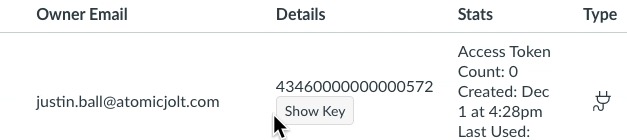
- The Key will now be displayed on the Developers Key page.

- Change the state of the Key to ON.
- Send the following information to Atomic Jolt at support@atomicjolt.com:
- Developer Key - Number on the first line listed for the key in the Details column.
- Developer Key ID - Click the Show Key button to see.
- Canvas Domain - The Canvas domain that students and teachers use. (e.g. “[institution].instructure.com”).
- Send the following information to Atomic Jolt at support@atomicjolt.com:
- Atomic Jolt will complete the setup in our system using the provided information.
- Schedule a time with your Atomic Jolt representative to install the Search tool together.
- When the user authorizes Atomic Search to install the tool into Canvas, it will issue an Access Token to Atomic Search that is limited to the Scopes that you specified for the Developer key.