
Create a Canvas Studio Developer Key
- Launch Canvas Studio (e.g. https://atomicjolt.instructuremedia.com/), go to Studio Settings, open Developer Keys, and add a new developer key. Name the key Atomic Search, and add the redirect URIs for the correct region:
|
dev |
https://search.atomicjoltdevapps.com/studio_install/redirect https://author.atomicjoltdevapps.com/studio_install/redirect |
|
beta |
https://search.atomicjoltbetaapps.com/studio_install/redirect https://author.atomicjoltbetaapps.com/studio_install/redirect |
|
US |
https://search.atomicjoltapps.com/studio_install/redirect https://author.atomicjoltapps.com/studio_install/redirect |
|
Dublin |
https://search.atomicjoltappsie.com/studio_install/redirect https://author.atomicjoltappsie.com/studio_install/redirect |
|
Sydney |
https://search.atomicjoltappsau.com/studio_install/redirect https://author.atomicjoltappsau.com/studio_install/redirect |
- Copy and send Atomic Jolt the client ID and secret for the developer key and the domain name of your Canvas Studio. This typically matches your Canvas Domain (e.g. atomicjolt.instructuremedia.com goes with atomicjolt.instructure.com), but not always, so try to navigate to their instructuremedia.com domain directly to verify.
- If it does not match, the domain can be found in the launch URL of the tool. Go to the Canvas account settings. Then Apps, then find Canvas Studio. Click the gear, then Edit. The launch URL will be something like https://atomicjolt.instructuremedia.com/lti/launch.
Steps for AJ Admin
- Login to the Atomic Search or Atomic Author Admin panel, depending on which tool they are integrating with.
- Click on Sites, New Site to add a Site for their Canvas Studio instance. Enter the following:
- Canvas Domain: [Their Canvas Studio url]
(e.g. https://atomicjolt.instructuremedia.com) - Canvas Developer ID: [The Client ID for their Canvas Studio Developer key]
- Canvas Developer Key: [The Secret for the Canvas Studio Developer key]
- Click Save.
- Go to LTI Tools, Atomic Search, and click on their application instance, then General Settings, then verify and update if needed the Studio URL field to match the Canvas Studio domain (e.g. https://atomicjolt.instructuremedia.com) and save.
- Notify the customer Canvas Admin that they can now authorize Canvas Studio in Atomic Search now.
Steps for Canvas Admin
- Login to Canvas as an Admin and go to Atomic Search
- Choose Manage Integrations from the 3-dot menu at the top-right.
- You should see an option for Canvas Studio. Click the option to enable the integration.
- When you do that, it will walk you through the OAuth process. When that is done, Atomic Search will begin indexing the Canvas Studio content that has been inserted in your courses.
This should only be necessary until we have deployed the integrations panel as described above. It will greatly simplify this process.
Complete the steps outlined in this article by Canvas Studio: https://community.canvaslms.com/t5/Canvas-Studio-Blog/Connecting-Studio-OAuth-via-Postman/ba-p/259739
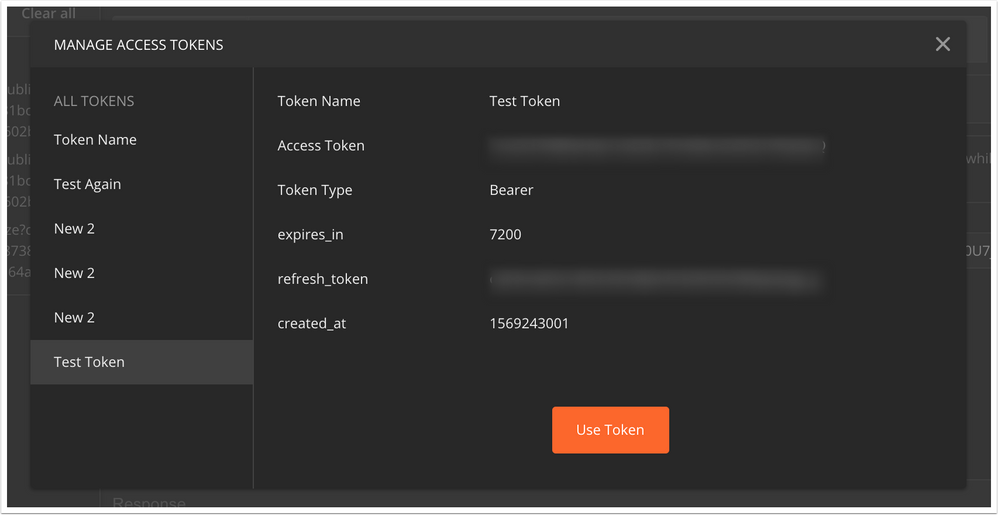
Securely send Atomic Jolt the Canvas studio domain name, Client ID and Secret, and all the token info you get at the end of the Postman process. it looks like this: 
One potentially tricky part is that you have to figure out the domain of Canvas Studio. Typically, it matches Canvas (like ours is atomicjolt.instructuremedia.com), but that’s not always the case. And so far, the only way I know how to find it is to inspect the iframe URL or look at network requests. If you
For reference, these steps are found in this canvas guide, but I will copy the relevant information into this document: https://community.canvaslms.com/t5/Canvas-Studio-Blog/Connecting-Studio-OAuth-via-Postman/ba-p/259739