
To create the .zip file in the source course
-
Go to the Assessment Manager in your course and in the triple dot menu, select the Content Manager.
-
Click on the triple dot menu in the Content Manager interface and choose Download Activities.
-
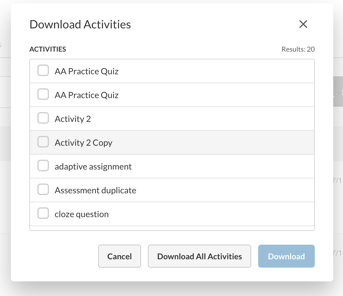
Select which activities to include in your export file and click the Download button to export. You can also choose to Download All Activities to export all content.
-
This will generate an Atomic Assessments .zip file containing the activity data.
To import the .zip in the target course
-
Go to the Assessment Manager in your course and in the triple dot menu, select the Content Manager.
-
Click on the triple dot menu in the Content Manager interface and choose Add Content.
-
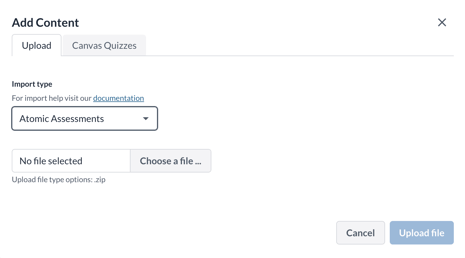
On the Upload tab, open the Import type dropdown and choose Atomic Assessments.
-
Upload your .zip file.