
ExamSoft Import
Import existing ExamSoft assessments into Atomic Assessments. Once imported, content is available just like anything created natively.
Supported File Types
- .zip
- .rtf
- .docx
- .html
How to Import
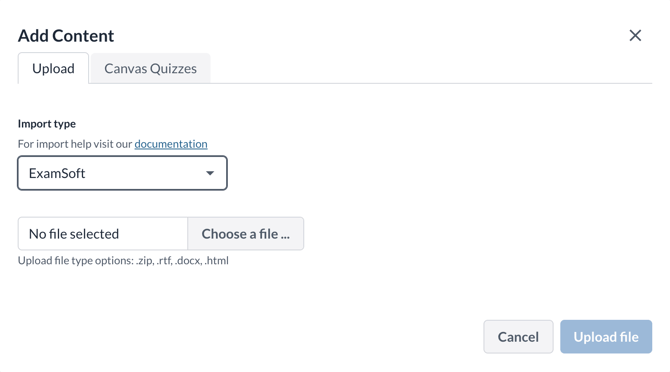
- Go to the Upload section under Add Content in the Content Manager and select ExamSoft as the source.
- Upload your exported file (only supported formats will be selectable).
- Submit — the import runs in the background, so you can leave the page.
- Check back to see your import status:
- Initialized — file received, waiting to process.
- Started — conversion in progress.
- Finished — content is ready to use.
- Failed — something went wrong. See the error message on the import record.
What Gets Imported
- Questions stimulus text, answer options, and correct answer keys.
- Items — reusable wrappers around questions.
Imported content is automatically tagged with your course context (course ID, term, account) so it stays organized in your LMS.
Errors
Unsupported file type — blocked before upload. Re-export from ExamSoft in a supported format.
Conversion errors — individual questions that can't be mapped are skipped and logged. The rest of the import still completes.
Import failure — the entire import failed, usually due to a malformed file. Check the error message on the import record.
Limitations
- ExamSoft IDs are not preserved — Atomic Assessments assigns new IDs to all imported content.
1. Things to Expect During the Migration
Note: Currently our internal importing tool supports these question types for automatic conversion - more types coming soon:- Multiple Choice- True/False- Fill in the Blank / Cloze- Ordering- Essay
How to Use the Import Feature:
Atomic Assessments has a new import feature that can directly upload an export from ExamSoft Here is how to use:
1. Navigate to the FeatureClick the three dots > Select "Content Manager"2. Click the three dots > Select "Add Content"3. Use the Import Feature4. Select the import type "ExamSoft" from the dropdown5. Select the files you exported from ExamSoft using the file picker6. Click "Upload file"7 . If any questions fail to import, you'll receive a message stating what went wrong for specific questions8. Proof-read the Imported Questions9. Click on the "Items" tab10 . Click through the questions to ensure all the important information got imported correctly
Migrating from ExamSoft to Atomic Assessments involves changes in workflow, integration, delivery, question management, and reporting. This section provides a high-level overview of what users can anticipate.
1.1 Integration and Delivery Differences
- ExamSoft assessments are typically delivered using Examplify, a dedicated application that enables secure, offline exam delivery.
- Atomic Assessments is an LTI tool integrated directly into your LMS (Canvas, Blackboard, D2L, etc.). Students complete assessments in their browser through LMS assignment links.
- Advantage over ExamSoft: Because Atomic Assessments lives inside your LMS, instructors can directly include Assessments alongside other course content. This keeps grading and feedback in one place and matches familiar LMS workflows.
- Secure exam delivery can still be achieved using third-party proctoring tools and LMS lockdown-browser solutions like Proctorio and Respondus.
1.2 Workflow Differences
ExamSoft workflow:
- Instructor creates exam in ExamSoft Portal
- Students download the exam into Examplify
- Students complete exam offline
- Exam uploads after completion
Atomic Assessments workflow:
- Instructor creates an Atomic Assignment inside the LMS
- Questions are authored directly or imported from question banks
- Students launch and complete the assessment within the LMS
- Grading and reporting occur through LMS + Atomic reporting dashboard
1.3 Question Bank Considerations
- Export your ExamSoft questions before decommissioning access.
- Determine which question types map cleanly to Atomic (see Section 2).
- Some questions may require manual re-authoring, especially advanced formats.
- Consider reorganizing or tagging questions within Atomic Assessments’s Content Manager.
1.4 Training and Support Requirements
- Faculty may require time to become familiar with the new authoring tools.
- Provide optional training sessions and practice assessments.
- Recommend instructors build a low-stakes pilot quiz for their first experience.
1.5 Reporting and Analytics
- Atomic provides reports such as:
- Summary report
- Item analysis
- Student responses
- Per-question performance
- Reporting locations and terminology differ from ExamSoft, so instructors should review a sample report early.
1.6 Student Experience Changes
- Students will now complete assessments directly in their browser.
- Provide students with a walkthrough of the new interface.
- Offer a practice assessment so students can test their devices.
1.7 Change Management
Recommended change-management steps:
- Announce migration timeline
- Provide documentation & training
- Offer a migration checklist (see Section 4)
- Identify campus support contacts
2. Similar Question Types
Atomic Assessments supports over 40+ question types, including equivalents to almost all ExamSoft formats. This table provides a quick mapping.
| ExamSoft Question Type | Atomic Assessments Equivalent | Notes |
|---|---|---|
| Multiple Choice (Single/Multiple) | Multiple Choice | Nearly identical in behavior and scoring |
| True/False | True/False | Simple conversion |
| Fill in the Blank | Fill in the Blank / Cloze | Atomic supports richer formats, including dropdown, drag‑drop, embedded blanks |
| Matching | Match/List/Order question types | Allows more flexible interactions |
| Drag & Drop | Drag‑and‑Drop | Supports images, text, zones |
| Hot Spot | Image Hotspot / Highlight | Enhanced image‑based interactions |
| Essay | Essay / Free Response | Atomic supports manual scoring and feedback |
| Numeric | Numeric / Formula | Advanced grading options available |
| Matrix / Grid | Choice Matrix | Supports NGN‑style use cases |
| Case Study | Passage + multiple item blocks | Flexible layout for scenario‑based assessments |
| NGN Types (e.g., Bowtie) | NGN Question Types | Atomic supports Bowtie, Vitals Tabs, Matrix responses, and more |
2.1 Important Notes
- Verify scoring rules after importing.
- Some ExamSoft formatting (like import codes) does not directly translate and may require re-authoring.
- Advanced items like Bowtie or Case Study can be recreated but may require using Atomic Assessment’s multi-part activity structure.
3. User Interface Differences
This section explains the major differences instructors and students will notice after the transition.
3.1 Instructor Interface
In ExamSoft:
- Users author assessments in the ExamSoft Portal.
- Questions and exams exist largely outside the LMS.
In Atomic Assessments:
- All authoring occurs inside the LMS, through the Atomic Assessments LTI link.
- The main tools include:
- Atomic Assignments
- Content Manager (for item banks)
- Question Editor (rich interactive builder)
- Reports
3.2 Creating a New Assessment
Steps typically include:
- Open Atomic Assessments in your LMS navigation
- Click New Assignment
- Add questions or import items
- Configure scoring, attempts, feedback, and delivery settings
- Save and link to LMS gradebook
3.3 Question Editor Differences
Atomic’s editor supports:
- Math & chemistry notation
- Drag-and-drop
- Image annotation
- Code blocks
- Rich media
- Multiple display modes
3.4 Student Interface
ExamSoft: Students complete assessments in the secure Examplify application.
Atomic Assessments: Students take assessments in their LMS. The student interface includes:
- Progress navigation
- Inline interactive elements
- Check-answer options (if enabled)
- Timer and attempt controls (if configured)
3.5 Grading and Reporting Interface
Atomic reporting includes:
- Summary dashboard
- Item statistics
- Per-question breakdown
- Exportable response data
4. Migration Checklist (Recommended)
Instructor Checklist
- Access Atomic Assessments in your LMS
- Create a low-stakes practice quiz
- Review available question types
- Export questions from ExamSoft (if migrating item banks)
- Re-author or import questions into Atomic Assessments
- Preview the assessment using Student View
- Review reporting tools
- Update course syllabus with new exam instructions
Administrator Checklist
- Confirm Atomic Assessments is enabled in LMS navigation
- Configure integrations (lockdown browser, proctoring, analytics tools)
- Prepare communication for faculty & students
- Provide training workshops or tutorial videos
- Establish migration timeline & shutdown date for ExamSoft
- Collect feedback during early adoption
5. Frequently Asked Questions (FAQ)
Do students need to install new software to take assessments?
No. Students complete Atomic Assessments directly inside the LMS using their browser.
Can ExamSoft question banks be imported into Atomic Assessments?
Some questions can be imported if exported in compatible formats. Others may require manual re-authoring.
Does Atomic Assessments support advanced question types like NGN?
Yes. it supports Bowtie, Case-based items, Vitals tab interactions, and other NGN formats.
What proctoring options does Atomic Assessments support?
It integrates with Respondus, and Respondus Lockdown Browser.
Where can I get support?
- Your institution’s support center:
- Atomic Jolt Support: https://support.atomicjolt.com
6. Additional Resources
- Atomic Jolt Knowledge Base: https://support.atomicjolt.com/knowledgebase
- ExamSoft Support Center: https://support.examsoft.com