
Course-Wide Individual Student Outcome Report
This report shows outcome performance for one student across all assessments in a course. It aggregates scores from every assessment that measures each outcome.
How to Access
- Open the Course Outcomes Report.
- Click on a student’s name.
What You’ll See
- All course outcomes applied to questions in any assessment in the course.
- Aggregated subscores based on all assessments measuring each outcome.
- Outcome descriptions, when available.
- Additional subscores for all other tags used in the course (displayed below outcomes).
This report is similar to the single-assessment student outcome report, but scores are aggregated across the entire course rather than a single assessment.
Course-Level Outcomes Report
This teacher-facing report aggregates outcome scores across all assessments for all students in a course. This report is similar to the single assessment student outcome report, but scores are aggregated across the entire course rather than a single assessment.
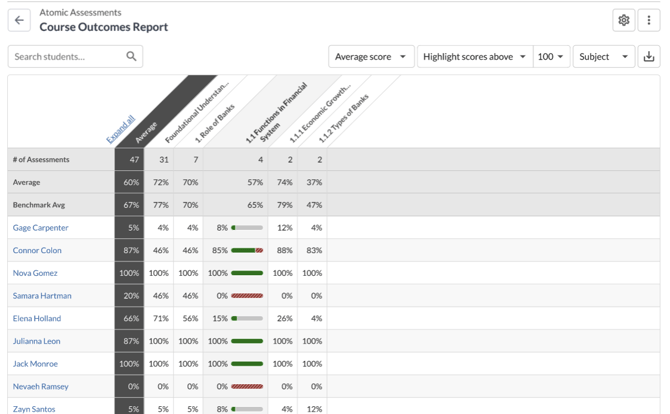
How to Access
- Open Atomic Assessments.
- Select the three-dot menu on the main view.
- Choose Student Reports.
Scoring Algorithms
You can choose how outcome scores are calculated using the Scoring Algorithm selector:
- Average (Default) - Unweighted average of aligned question scores across all attempts.
- High Score - Highest percent correct from any attempt measuring the outcome.
- Most Recent - Percent correct from the most recently completed attempt.
- Weighted Average - Weights scores based on the number of aligned questions.
- Decaying Average - Weights scores using a selected decay percentage (choose the decay rate from a dropdown).
- N-Number of Scores - Averages scores from the most recent N attempts (select up to 10).
Highlight Outcome Scores
Highlighting helps you quickly identify strengths and areas of concern.
How to Highlight Scores
- Use the dropdown to set a cut score (for example, 70%).
- Choose whether to highlight scores above or below the cut score.
Helpful Notes
- Highlight preferences are remembered and applied across assessments.
- Highlighting works for both individual and course-level reports.
Expand or Collapse Outcome Hierarchies
Outcomes are organized in a hierarchy (for example: Subject → Topic → Sub-topic).
You can:
- Click an outcome name to expand or collapse its child outcomes.
- Expand up to four levels of the hierarchy.
- View only the top-level outcomes by default.
Select Outcome Levels or Tags
Use the dropdown menu to customize which columns appear in the report.
Outcome Levels
- Display outcomes at a specific level (for example, Topic or Sub-topic).
- Higher-level outcomes are hidden, but child outcomes can still be expanded.
Tags
- Display question tags such as Skill, Case, Analysis, or Prediction.
- Each column represents a tag value.
- Each cell shows the percent correct for questions labeled with that tag.
Expand Hierarchies by Tag
When viewing tag data:
- Click a tag heading to expand related outcome hierarchies.
- Use the Expand all checkbox to expand all available levels under the selected outcome level or tag type.
Download the Report
Click Download to export the report as a spreadsheet.
The download includes:
- One row per student
- Columns for each outcome and tag
- Percent correct scores for every student-outcome and student-tag combination