
Brightspace Search Installation Guide
Register the tool & configure deployments
- Log in as a Super Administrator in Brightspace.
- In the upper right corner of the Homepage, select the Admin Tools gear and click on Manage Extensibility
- Click on the LTI Advantage tab and click the Register Tool button
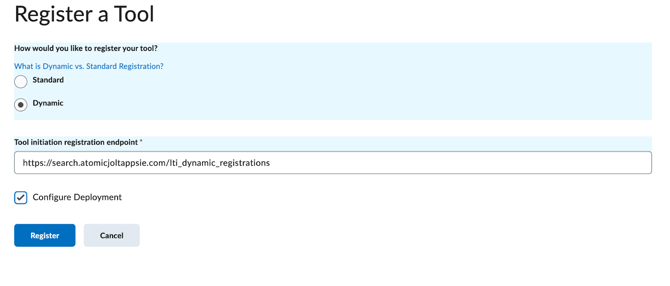
- Choose Dynamic Registration
- Copy and paste the URL Registration endpoint for your region:
- US - https://search.atomicjoltapps.com/lti_dynamic_registrations
- Europe - https://search.atomicjoltappsie.com/lti_dynamic_registrations
- Asia/Pacific - https://search.atomicjoltappsau.com/lti_dynamic_registrations
- Canada - https://search.atomicjoltappsca.com/lti_dynamic_registrations
- Beta - https://search.atomicjoltbetaapps.com/lti_dynamic_registrations
- Dev - https://search.atomicjoltdevapps.com/lti_dynamic_registrations
- Check the Configure Deployment checkbox and click Register.
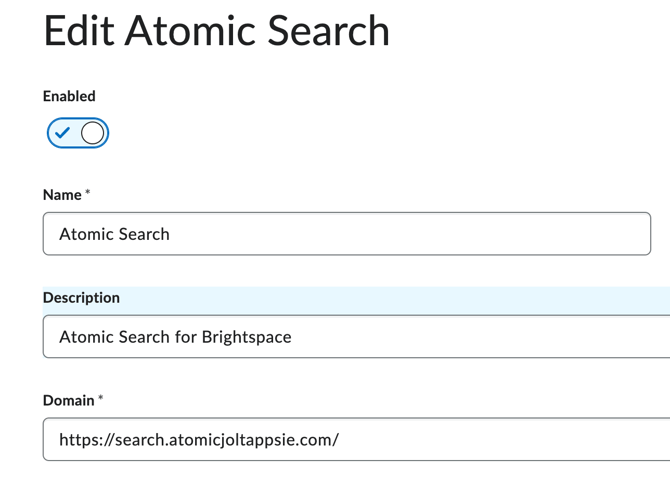
- Atomic Search will be disabled initially. Click on the Atomic Search tool name to toggle the state to ENABLE and click the Save button.
- Scroll down to the bottom of the page and click on the "View Deployments" link. This link will launch a new tab where you will complete the next set of steps.
Configure the deployment
The deployment is initially available only to the root org unit, but it needs to be made accessible to all descendants so that it can be used in courses.
- Go back to Manage Extensibility
- Go to the LTI Advantage Tab
- Click on the Atomic Search Instance
- Click on View Deployments
- Click on the existing Atomic Search deployment
- Check the User ID box under ‘Security Settings’
- Click on the Add Org Units button
- Find the root org unit; you can do this by filtering on the Unit Type "Organization"
- Check the box for the root org unit, and select the option “This org unit and all descendants.”
- MAKE SURE YOU DO THIS. If the customer tries to add a course offering or something else other than an organization and all its descendants, make sure to override, or search will not work downstream.
- Save.
- Scroll down to the bottom of the page and click on the "View Links" link. This link will launch a new tab where you will complete the next set of steps.
Configure Link
- Go back to Manage Extensibility
- Go to LTI Advantage Tab
- Click into the Atomic Search Instance
- Click on View Deployments
- Clck on View Links
- Click on the New Link button
- Name: Atomic Search
- For the URL, copy and paste in the link for your region:
- US - https://search.atomicjoltapps.com/lti_launches
- Europe - https://search.atomicjoltappsie.com/lti_launches
- Asia/Pacific - https://search.atomicjoltappsau.com/lti_launches
- Canada - https://search.atomicjoltappsca.com/lti_launches
- Beta - https://search.atomicjoltbetaapps.com/lti_launches
- Dev - https://search.atomicjoltdevapps.com/lti_launches
- Type: "Basic Launch"
- Save & Close
Add Atomic Search to the navigation bars
We recommend adding Atomic Search to the course and dashboard navigation bars. Navigate to the Admin Tools gear, and choose Navigation & Themes.
Create a custom link
- Click on the Custom Links tab, then click on the Create Link button
- Name the link Atomic Search.
- Click on the Insert Quicklink button, find the External Learning Tools option, and choose “Atomic Search”
- Copy the generated URL value and save it somewhere. THE URL IS UNIQUE AND IS IN THE URL FIELD “EDIT CUSTOM LINKS”; it will be used later to set up the widget. It should look something like this:
- DO NOT COPY THIS. THIS IS AN EXAMPLE OF WHAT THE LINK LOOKS LIKE.
|
/d2l/common/dialogs/quickLink/quickLink.d2l?ou={orgUnitId}&type=lti&rcode=9ADACE5F-1B93-48C6-8E76-09AE53984D7F-1647&srcou=6606 |
- In the Behavior dropdown, choose "Same Window"
- Under Availability, enable the "Share with child org units" checkbox.
- Click Save.
Add the Atomic Search custom link to Navbars
|
If the customer wants to install the Navbar as the Org Unit level, they can go to the Settings Gear > Org Unit Editor > click the org unit you want > add the navbar item there. |
There are two types of navigation used with Atomic Search: the Dashboard and Course-level navbars. The current course-level nav will be marked as "Default," and the Dashboard nav will be marked as "Active." You can edit these navbars or create a copy and make it the new active or default.
- Click on the Navbars tab, then click on the Navbar to which you want to add the link.
- On the Edit page, click Add Links, in the popup and find the External Learning Tools option, and choose “Atomic Search”
- Save & Close.
- Repeat for the other navbar.
Add the Atomic Search Widget box to homepages
We can add a widget box to the course and dashboard homepages in addition to the navbar placements.
Navigate to the Settings Gear, Homepage Management
- Create the widget by clicking on the 'Widgets' tab, then click the Create Widget button
- Under the Properties tab
- Name: Atomic Search
- Widget Security: Uncheck sandboxing and iframe settings
- Under the Content tab
- In the RCE, click the Source Code button, (Looks like: </>)
- Enter the following HTML as the source
- Under the Properties tab
|
<div id="atomic-jolt-search-widget"></div> <div><script> window.atomicSearchConfig = { orgTypeId: "{OrgUnitTypeId}", link: "[URL copied from link earlier]", showBranding: "on", } var atomicSearchWidgetScript = document.createElement("script"); atomicSearchWidgetScript.src = "https://js.atomicsearchwidget.com/brightspace.js"; document.getElementsByTagName("head")[0].appendChild(atomicSearchWidgetScript); </script></div> |
- Replace the link value in the script (currently says: “[URL copied from link earlier])” with the link value you copied in the “Create a Custom Link” steps above.
- The value of showBranding can be changed to ‘off’ if the customer doesn’t want to see the ‘Powered by Atomic Jolt’ text.
- Click Save & Close.
Add the widget to homepages
The homepages are structured similarly to navbars; an 'Active' applies to the dashboard and a 'Default' one applies to courses. The widget needs to be added to both.
- Go to Homepage Management
- Go to the Active and/or Default Homepage (you will see the indicator on the right)
- Default makes it show up in all courses
- Active makes it show up on the current homepage
- Click on it/them
- Scroll down, and then find an Add Widget button where you desire and place the Atomic Search widget there.
Indexing LMS content
Create OAuth application
To maintain an index of your content we need to create a new OAuth 2.0 authentication.
- Navigate to the Admin Tool Gear, click on Manage Extensibility
- Click on the OAuth 2.0 tab
- Click on the Register an app button
- Application Name: Atomic Search
- Redirect URIs:
- US - https://search.atomicjoltapps.com/brightspace_install/redirect
- Europe - https://search.atomicjoltappsie.com/brightspace_install/redirect
- Asia/Pacific - https://search.atomicjoltappsau.com/brightspace_install/redirect
- Canada - https://search.atomicjoltappsca.com/brightspace_install/redirect
- Beta - https://search.atomicjoltbetaapps.com/brightspace_install/redirect
- Dev - https://search.atomicjoltdevapps.com/brightspace_install/redirect
- Scope: checklists:checklist:read,write content:file:read,write content:modules:readonly content:toc:read content:topics:manage,read,readonly core:*:* discussions:forums:readonly,manage discussions:topics:readonly,manage managefiles:files:read managefiles:folders:read organizations:organization:read quizzing:quizzes:read,write surveys:surveys:read,update
- Access Token Lifetime: 72000
- Prompt for user consent: yes
- Enable refresh token: yes
- Accept terms: yes
- Send the Client ID and Client Secret that generate securely to Atomic Jolt.
- A new Site will be created in the admin panel and the CLIENT ID and CLIENT Secret needs to be added.
Obtain a token (needs to happen on an Org launch, not a course launch)
- As an Admin (make sure you are on the top most part of your site, and not the course level), launch Atomic Search using the navbar link or widget from your homepage.
- In Atomic Search, open the 3-dot menu and select Admin settings. In the popup, click the Set up content indexing button.
- This will open up a new tab that walks you through an OAuth process. After completing the process, it will tell you it was successful, and you can close the tab.
- Atomic Jolt will notify the Search development team so we can track the indexing status.