
Instructors and course admins can select multiple journal activities at once and either push them to other courses or delete them.
Opening the Journal Activities list
How you reach the list depends on how Atomic Journals was launched:
Launched from the course navigation — the Journal Activities list is the first screen you see.
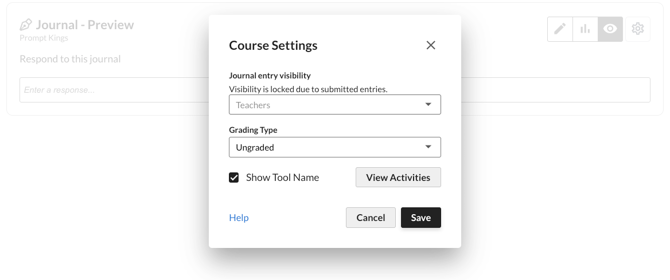
Launched inside a single journal activity — click the Settings gear in the upper-right corner, then click View Activities in the Course Settings window.
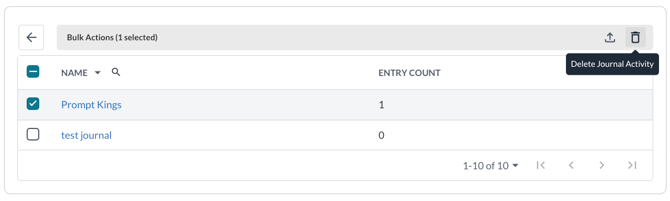
The list shows every journal activity in the course, with a Name column you can sort and search, and an Entry Count column showing how many learner entries each activity has.
Selecting activities
Click the checkbox to the left of any activity name. You can select several at once, or use the checkbox in the column header to select everything on the page.
As soon as one activity is selected, the title bar is replaced by a Bulk Actions bar showing how many activities you have selected, along with the push and delete buttons.
Pushing activities to other courses
Use this to copy journal activities into one or more other courses, or to send updated content to courses you have already copied to.
Before you start
Atomic Journals only knows you have author rights in a course once the tool has been opened there. Open Atomic Journals at least once in each destination course before you push to it. Courses where you do not yet have author rights appear in the list but cannot be selected.
To push journal activities:
1. Select the activities you want to copy.
2. Click the Push Journal Activities icon in the Bulk Actions bar.
3. The Push Activities screen opens with a list of Associated Courses.
- By default, this lists the courses you have previously pushed content to from this course.
- To add a course, search by title, short name, or SIS ID and select it. The course stays on the list going forward until you remove it with the x.
- Course names link to the course in your LMS, so you can confirm you have the right one.
4. Click the checkbox to the left of each course you want to push to.
5. Click Next.
6. On the Push Journal Activities - Settings screen, choose what you want to send:
- Update journal activity content — replaces the activity content in the destination course with the current version from this course. Only affects activities that are already there from an earlier push.
- Update course settings — copies this course's journal settings (entry visibility, grading type, and Show Tool Name) to the destination courses.
Leave both unchecked when you are copying to a new course. Activities that do not yet exist in the destination course are always created. The checkboxes only control whether activities already in that course get overwritten.
7. Click Push.
A Pushing … to … courses message appears in the title bar while the copy runs, and changes to Push completed when it finishes. You can keep working while it runs.
Deleting activities
Use this to remove journal activities from the current course.
Deleting an activity also deletes the learner entries attached to it. If the course grades journal entries, the grades are removed as well, and the matching columns are cleared from your LMS gradebook. Check the Entry Count column before you delete — that is the number of learner entries the deletion will take with it.
To delete journal activities:
1. Select the activities you want to remove.
2. Click the Delete Journal Activities icon in the Bulk Actions bar.
3. Read the confirmation message and click Delete. The activities are removed from the list.
Restoring an activity you deleted by mistake
Deleting an activity does not remove its link from your course content. If you deleted something in error:
1. Go to the course content where the journal activity was placed and open the link.
2. A Deleted Journal screen appears, showing the activity name and prompt.
3. Click Restore.
4. Reload the page.
The activity, its entries, and any grading connections are restored. If you meant to delete it, remove the leftover link from your course content so learners do not run into it.