
If you want to update how Atomic Assessments behaves or the way it looks, you can do so by editing the CSS rules. Admins can adjust global CSS for all courses using the tool in the Admin Settings menu option. The steps will be the same as applying it at the course level.
Course level CSS can be applied by following the steps below.
- Navigate to the Atomic Assessments menu.
- Use the three-dot menu to select Settings.

Figure 1: Open settings from the three-dot menu - Open the Custom styling section.
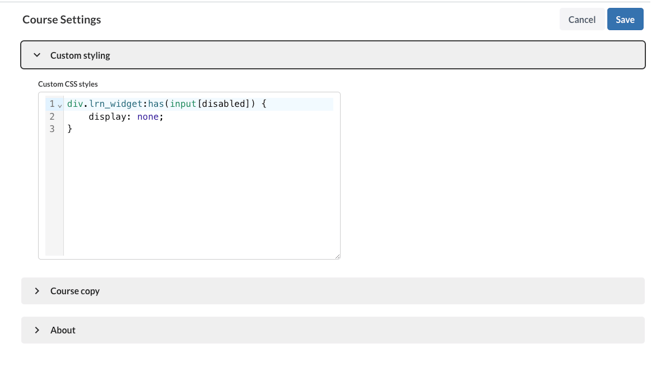
Figure 2: Open Custom styling section - Paste in the code.
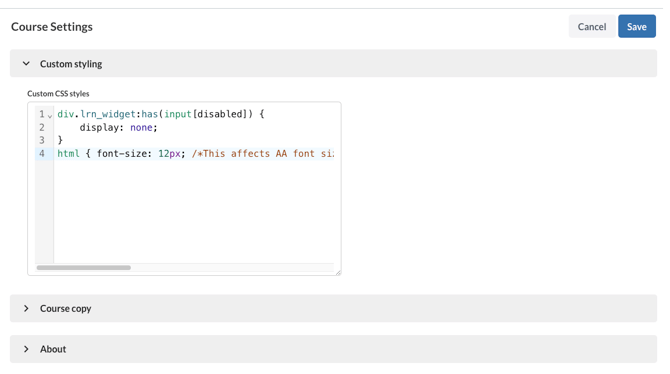
Figure 3: Paste the HTML to change the font size - Save the settings.
Common CSS changes
Use the following code to change font size in AA. Be aware that changing font size may change other elements of the UI.
html { font-size: 12px; /*This affects AA font sizes*/ } .lrn, .lrn .lrn-author-ui-no-preview { font-size: 16px; /*This affects font sizes within questions*/ }
To hide the correct responses box in the student review screens
#hide-correct-responses-option {display: none;}